

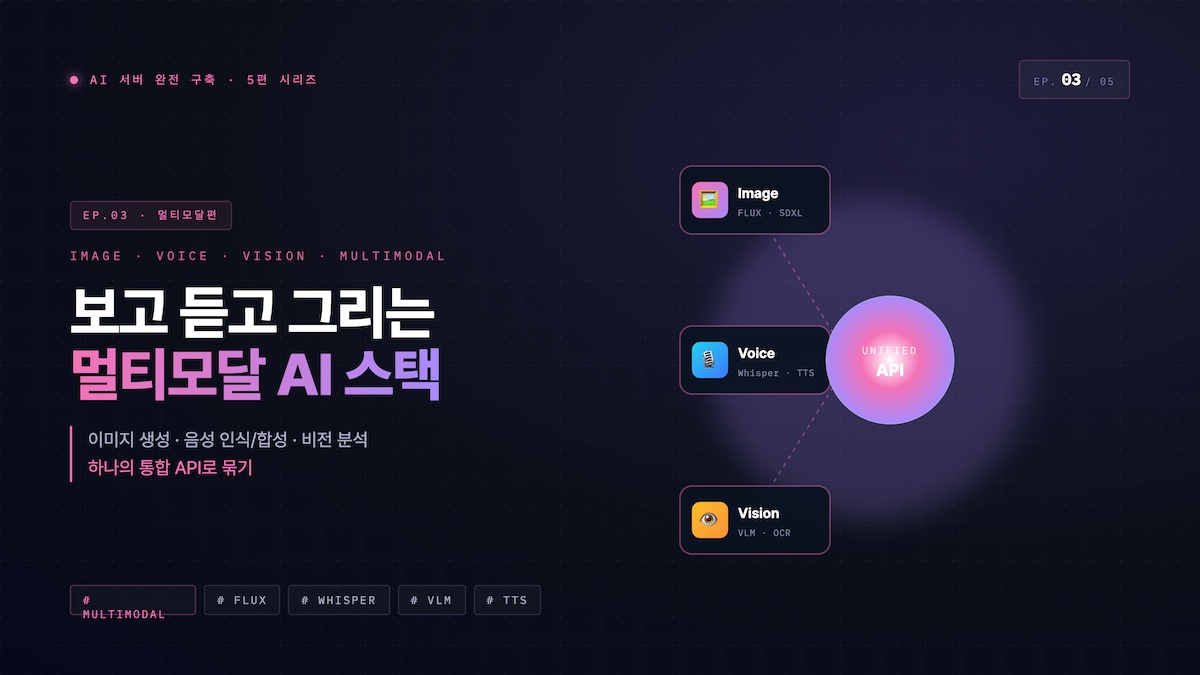

3편 전체 목차
이미지 생성 엔진 비교 & 선택 가이드
로컬 AI 이미지 생성 생태계는 크게 두 가지 엔진으로 나뉩니다. ComfyUI는 노드 기반 워크플로우로 최고의 유연성을 제공하고, Automatic1111 (A1111)은 직관적인 UI로 빠른 생성에 최적화됩니다. 두 가지를 같은 서버에 설치해 용도에 따라 선택하는 것이 가장 현명합니다.
🆚 ComfyUI vs A1111 상세 비교
| 항목 | ComfyUI | A1111 (Automatic1111) |
|---|---|---|
| 인터페이스 | 노드 그래프 (고급) | 탭형 UI (직관적) |
| FLUX.1 지원 | 🟢 최고 (공식 우선 지원) | 🟡 플러그인 필요 |
| 워크플로우 재현성 | 🟢 완벽 (JSON 저장) | 🟡 일부 설정만 |
| API 연동 | 🟢 강력한 REST API | 🟢 REST API 지원 |
| 확장 플러그인 | 🟡 커스텀 노드 | 🟢 방대한 Extensions |
| VRAM 효율 | 🟢 최적화 우수 | 🟡 보통 |
| 초보자 접근성 | 🔴 학습 곡선 있음 | 🟢 쉬움 |
| 배치 처리 | 🟢 워크플로우 배치 | 🟡 기본 배치 |
| 추천 용도 | 고급 워크플로우, API 자동화 | 빠른 실험, 다양한 모델 탐색 |
🎨 VRAM별 추천 이미지 모델
| VRAM | 추천 모델 | 해상도 | 특징 |
|---|---|---|---|
| 6~8GB | SDXL Turbo, SD 1.5 | 512~768px | 빠른 생성. 품질 제한적 |
| 10~12GB | SDXL, FLUX.1 Schnell (양자화) | 1024px | 고품질. FLUX는 FP8 양자화 필요 |
| 16~24GB | FLUX.1 Dev, SD3.5 Large | 1024~2048px | 최고 품질. 상세한 표현 가능 |
| 24GB+ | FLUX.1 Dev FP16, SVD (비디오) | 2048px+ | 무제한 수준의 품질과 해상도 |
ComfyUI — 검증된 RTX 3060 최적화 설정
ComfyUI는 마스터 가이드의 통합 7서비스 docker-compose.yml 안에 이미 포함되어 있습니다. 별도 compose가 아니라 같은 파일에 넣는 게 핵심입니다 — ai-common-net으로 n8n·Open WebUI와 한 네트워크에 있어야 서로 호출할 수 있습니다.
  comfyui:
    image: yanwk/comfyui-boot:cu128-slim
    # cu128: 설치된 CUDA 12.8에 정확히 일치
    container_name: comfyui
    runtime: nvidia
    restart: unless-stopped
    ports:
      - "8188:8188"
    environment:
      # ── GPU 설정 ─────────────────────────────────────────────
      - NVIDIA_VISIBLE_DEVICES=0
      - NVIDIA_DRIVER_CAPABILITIES=compute,utility,video
      # RTX 3060 Ampere 아키텍처 명시 (compute 8.6)
      - TORCH_CUDA_ARCH_LIST=8.6
      # CUDA 모듈 지연 로딩 (시작 2~3초 단축)
      - CUDA_MODULE_LOADING=LAZY

      # ── ComfyUI 실행 옵션 ────────────────────────────────────
      # --cuda-malloc     RTX 30xx VRAM 단편화 30% 감소
      # --fast            불필요한 안전 검사 제거
      # --highvram        12GB: SDXL(6.5GB)·FLUX GGUF Q4(7~8GB) 상주
      # --preview-method latent2rgb  VAE 없이 빠른 프리뷰
      # --cache-none      워크플로우 전환 시 VRAM 즉시 해제 (OOM 방지)
      - CLI_ARGS=--listen 0.0.0.0 --port 8188 --cuda-malloc --fast --preview-method latent2rgb --highvram --cache-none

      # ── PyTorch 메모리 최적화 (RTX 3060 12GB 기준) ──────────
      # gc threshold 0.85: VRAM 85%(10.2GB) 시 GC 실행
      # max_split_size 256: 12GB 기준 최적 블록 크기
      # expandable_segments: PyTorch 2.x 동적 세그먼트 (단편화 감소)
      - PYTORCH_CUDA_ALLOC_CONF=garbage_collection_threshold:0.85,max_split_size_mb:256,expandable_segments:True

      - GIT_CONFIG_GLOBAL_SAFE_DIRECTORY=/root/ComfyUI
      - TZ=Asia/Seoul
      - PYTHONUNBUFFERED=1

    volumes:
      # yanwk cu128-slim 내부 경로: /root/ComfyUI
      - /mnt/data/01_ai/comfyui/models:/root/ComfyUI/models
      - /mnt/data/01_ai/comfyui/workflows:/root/ComfyUI/user/default/workflows
      - /mnt/data/01_ai/comfyui/output:/root/ComfyUI/output
      - /mnt/data/01_ai/comfyui/input:/root/ComfyUI/input
      - /mnt/data/01_ai/comfyui/temp:/root/ComfyUI/temp
      - /mnt/data/01_ai/comfyui/custom_nodes:/root/ComfyUI/custom_nodes
      - /mnt/data/01_ai/comfyui/user:/root/ComfyUI/user
      # pip·HuggingFace 캐시 영속화 (재생성 시 재다운로드 방지)
      - /mnt/data/01_ai/comfyui/dot-cache:/root/.cache

    deploy:
      resources:
        reservations:
          devices:
            - driver: nvidia
              device_ids: ['0']        # --gpus all 보다 명시적
              capabilities: [gpu]
        limits:
          cpus: '16.0'
          memory: 64G
          # R730 128GB 기준: Wan 2.2 오프로딩 + FLUX GGUF 처리 여유

    # Wan 2.2 비디오 생성 시 공유 메모리 OOM 방지
    shm_size: '16g'
    ulimits:
      memlock:
        soft: -1
        hard: -1                       # GPU 메모리 전송 최적화
      nofile:
        soft: 65536
        hard: 65536                    # 대량 모델 파일 처리

    healthcheck:
      test: ["CMD-SHELL", "curl -sf http://localhost:8188/system_stats > /dev/null || exit 1"]
      interval: 30s
      timeout: 15s
      retries: 5
      # 첫 실행: Manager 설치 + custom_nodes 의존성 설치 여유
      start_period: 180s

    networks:
      - ai-common-net
    logging: *default-logging
    labels:
      # ComfyUI는 자동 업데이트 제외 (워크플로우 호환성 관리)
- "com.centurylinklabs.watchtower.enable=false"--highvram --cache-none --cuda-malloc 조합과 PYTORCH_CUDA_ALLOC_CONF 메모리 설정이 실제로 OOM(메모리 부족) 없이 SDXL·FLUX GGUF를 안정적으로 돌리는 데 핵심이었습니다. device_ids: ['0']로 GPU를 명시한 것도 멀티 GPU 환경 혼동을 막기 위함입니다.
# ComfyUI Manager 설치 (노드 관리 UI)
docker exec -it comfyui bash -c "
cd /root/ComfyUI/custom_nodes && \
git clone https://github.com/ltdrdata/ComfyUI-Manager.git && \
pip install -r ComfyUI-Manager/requirements.txt
"

# ComfyUI 재시작
docker restart comfyui
A1111 핵심 확장 & 설정 최적화 ⚠️ 검증 전
A1111은 설치 후 확장 플러그인 구성이 핵심입니다. Extensions 탭에서 URL로 직접 설치하거나 Extensions 목록에서 검색해 설치합니다.
🔌 필수 Extensions 목록
| Extension | 기능 | 설치 URL |
|---|---|---|
| ControlNet | 포즈·엣지·깊이 기반 이미지 제어 | mikubill/sd-webui-controlnet |
| Ultimate SD Upscale | 타일 기반 고해상도 업스케일링 | Coyote-A/ultimate-upscale-for-automatic1111 |
| ADetailer | 얼굴·손 자동 수정 (Inpainting) | Bing-su/adetailer |
| Infinite Zoom | 줌인/줌아웃 영상 생성 | v8hid/infinite-zoom-automatic1111-webui |
| Prompt All-in-One | 한국어 프롬프트 번역 지원 | Physton/sd-webui-prompt-all-in-one |
| Regional Prompter | 이미지 영역별 다른 프롬프트 적용 | hako-mikan/sd-webui-regional-prompter |
⚡ A1111 성능 최적화 launch 옵션
# webui-user.sh 또는 Docker environment의 CLI_ARGS
CLI_ARGS="
  --listen                    # 외부 접근 허용
  --api                       # REST API 활성화
  --xformers                  # 메모리 최적화 (VRAM 20~30% 절감)
  --opt-sdp-attention         # SDP attention 최적화
  --opt-channelslast          # 채널 순서 최적화
  --no-half-vae               # VAE 품질 유지 (권장)
  --medvram                   # 12GB VRAM 이하에서 권장
  --skip-torch-cuda-test      # 시작 시간 단축
  --enable-insecure-extension-access  # Extension 설치 허용
"FLUX.1 모델 완전 정복
FLUX.1은 2024년 Black Forest Labs가 출시한 차세대 이미지 생성 모델로, 사실적인 표현력과 텍스트 렌더링에서 SDXL을 크게 앞섭니다. 특히 손가락, 글씨, 복잡한 구도 처리가 혁신적으로 개선됐습니다.
🔥 FLUX.1 버전별 비교
| 버전 | 용도 | 라이선스 | VRAM | 스텝 |
|---|---|---|---|---|
| FLUX.1-Schnell | 빠른 생성 (1~4스텝) | Apache 2.0 (무료 상업용) | 12GB+ | 4 |
| FLUX.1-Dev | 고품질 생성 | 비상업용 연구 | 16GB+ | 20~30 |
| FLUX.1-Pro | 최고 품질 API 서비스 | 상업용 유료 | API | 자동 |
| FLUX.1-Fill | 인페인팅 특화 | 비상업용 | 16GB+ | 30 |
# HuggingFace CLI 설치
pip install huggingface_hub

# FLUX.1-Schnell (무료 상업용, 12GB VRAM)
huggingface-cli download black-forest-labs/FLUX.1-schnell \
  --local-dir ~/ai-server/data/models/FLUX/schnell

# FLUX.1-Dev (비상업 고품질, 16GB VRAM)
huggingface-cli download black-forest-labs/FLUX.1-dev \
  --local-dir ~/ai-server/data/models/FLUX/dev

# GGUF 양자화 버전 (12GB VRAM에서 Dev 품질)
huggingface-cli download city96/FLUX.1-dev-gguf \
  flux1-dev-Q4_K_S.gguf \
  --local-dir ~/ai-server/data/models/FLUX/gguf
✍️ FLUX.1 프롬프트 작성 가이드
SDXL/SD1.5는 “masterpiece, 8k, ultra realistic” 같은 키워드 나열이 효과적이지만, FLUX.1은 자연어 문장 형태로 상세하게 묘사하는 것이 훨씬 좋은 결과를 냅니다. “A professional portrait photo of a Korean woman in her 30s, wearing a white linen shirt, sitting in a bright modern cafe, shallow depth of field, natural window light” 처럼 시각적 상황을 완전한 문장으로 작성하세요.
이미지 생성 API 서버화 & Open WebUI 연동
Open WebUI의 COMFYUI_BASE_URL=http://comfyui:8188 환경변수로 ComfyUI 연동은 실제로 검증했습니다. 아래 A1111 관련 내용은 ⚠️ 검증 전입니다.
ComfyUI와 A1111 모두 REST API를 제공합니다. 이를 Open WebUI에 연결하면 채팅에서 “이 콘셉트를 이미지로 만들어줘”라고 입력하는 것만으로 AI가 프롬프트를 생성하고 이미지까지 자동 생성합니다.
🔗 Open WebUI 이미지 생성 연동 설정
http://a1111:7860 / ComfyUI: http://comfyui:8188 (Docker 네트워크 내부 주소)🐍 Python으로 A1111 API 직접 호출
import requests
import base64
from PIL import Image
from io import BytesIO

A1111_URL = "http://localhost:7860"

def generate_image(prompt, negative_prompt="", steps=20, width=1024, height=1024):
    payload = {
        "prompt": prompt,
        "negative_prompt": negative_prompt,
        "steps": steps,
        "width": width,
        "height": height,
        "cfg_scale": 7,
        "sampler_name": "DPM++ 2M Karras",
        "batch_size": 1,
    }
    response = requests.post(
        f"{A1111_URL}/sdapi/v1/txt2img",
        json=payload,
        timeout=120
    )
    result = response.json()
    image_data = base64.b64decode(result["images"][0])
    image = Image.open(BytesIO(image_data))
    return image

# 사용 예시
img = generate_image(
    prompt="A futuristic AI server room with glowing blue lights, cinematic, 8k",
    negative_prompt="blurry, low quality, text",
    steps=30,
    width=1024,
    height=1024
)
img.save("output.png")
print("이미지 생성 완료!")고급 기능 — LoRA · ControlNet · 업스케일 · 비디오 ⚠️ 검증 전
🎭 LoRA — 특정 스타일/인물 파인튜닝 적용
LoRA(Low-Rank Adaptation)는 특정 화풍, 캐릭터, 제품을 AI가 학습한 작은 모델 파일입니다. 기본 모델에 LoRA를 추가하면 특정 스타일을 즉시 적용할 수 있습니다.
/stable-diffusion-webui/models/Lora/ComfyUI:
/ComfyUI/models/loras/<lora:lora_filename:0.8> 추가. 숫자는 강도(0~1). CivitAI에서 다양한 LoRA 무료 다운로드 가능.🎮 ControlNet — 포즈·구도 정밀 제어
| ControlNet 유형 | 입력 | 효과 | 활용 |
|---|---|---|---|
| OpenPose | 포즈 스켈레톤 | 인물 포즈 정확 제어 | 인물 사진, 캐릭터 |
| Canny | 엣지 맵 | 구도·형태 유지 | 제품 사진 리스타일 |
| Depth | 깊이 맵 | 원근감 보존 | 인테리어, 건축 |
| Lineart | 선화 | 선화 채색 | 일러스트, 애니 |
| InPaint | 마스크 영역 | 특정 부분만 변경 | 배경 교체, 수정 |
🔍 Real-ESRGAN 업스케일링
# 512px 이미지를 4K로 업스케일 (Docker)
docker run --rm --gpus all \
  -v ~/ai-server/data/outputs:/input \
  -v ~/ai-server/data/upscaled:/output \
  xinntao/realesrgan:latest \
  -i /input/image.png \
  -o /output/upscaled.png \
  -n RealESRGAN_x4plus \
  -s 4                       # 4배 업스케일
- 블로그 썸네일 자동 생성 — n8n이 새 포스트 발행 시 → A1111 API로 썸네일 자동 생성 → WordPress 업로드
- 제품 사진 배경 교체 — ControlNet Canny로 제품 형태 유지 → 배경만 교체 → 쇼핑몰 자동 업로드
- 소셜미디어 콘텐츠 배치 생성 — ComfyUI API + n8n 워크플로우로 10~50장 배치 생성
- Open WebUI 채팅 → 이미지 생성 자동화 — LLM이 프롬프트 최적화 → A1111로 생성 → 채팅창 표시
Whisper 음성 인식 서버 완전 구축 ⚠️ 검증 전
OpenAI Whisper는 99개 언어를 지원하는 최고 수준의 오픈소스 STT(Speech-to-Text) 모델입니다. faster-whisper는 CTranslate2 기반으로 원본보다 최대 4배 빠르면서 VRAM도 절반만 사용합니다. AI 서버에 설치하면 회의 녹음 파일을 올리는 것만으로 수 분 만에 완전한 한국어 자막이 완성됩니다.
🎙️ Whisper 모델 선택 가이드
| 모델 | VRAM | 속도 | 한국어 정확도 | 추천 용도 |
|---|---|---|---|---|
| tiny | ~1GB | ⚡⚡⚡⚡⚡ | 🟡 보통 | 실시간 자막 (저지연 우선) |
| base | ~1GB | ⚡⚡⚡⚡ | 🟡 양호 | 빠른 받아쓰기 |
| small | ~2GB | ⚡⚡⚡ | 🟢 좋음 | 일상 대화, 팟캐스트 |
| medium | ~5GB | ⚡⚡ | 🟢 우수 | 한국어 추천 — 균형 |
| large-v3 | ~10GB | ⚡ | 🟢 최고 | 회의록·전문 음성 최고 품질 |
| large-v3-turbo | ~6GB | ⚡⚡ | 🟢 최고 | large 품질 + 속도 개선판 |
services:
  whisper-api:
    image: fedirz/faster-whisper-server:latest-cuda
    container_name: whisper_api
    restart: unless-stopped
    ports:
      - "8000:8000"
    volumes:
      - whisper_models:/root/.cache/huggingface
    environment:
      - WHISPER__MODEL=large-v3-turbo    # 모델 선택
      - WHISPER__INFERENCE_DEVICE=cuda   # GPU 사용
      - WHISPER__COMPUTE_TYPE=float16    # FP16으로 VRAM 절약
      - WHISPER__LANGUAGE=ko             # 한국어 고정 (정확도↑)
      - WHISPER__BEAM_SIZE=5
      - WHISPER__VAD_FILTER=true         # 무음 구간 자동 제거
    deploy:
      resources:
        reservations:
          devices:
            - driver: nvidia
              count: 1
              capabilities: [gpu]
    networks:
      - ai_net

volumes:
  whisper_models:

networks:
  ai_net:
    external: true
    name: ai_network
🐍 Whisper API 활용 — 파일 변환 & 실시간 스트리밍
import httpx
import asyncio
from pathlib import Path

WHISPER_URL = "http://192.168.1.100:8000"

## ── 파일 음성 인식 ────────────────────────────────
async def transcribe_file(audio_path: str) -> dict:
    """오디오 파일 전체를 텍스트로 변환"""
    async with httpx.AsyncClient(timeout=300) as client:
        with open(audio_path, "rb") as f:
            response = await client.post(
                f"{WHISPER_URL}/v1/audio/transcriptions",
                files={"file": (Path(audio_path).name, f, "audio/mpeg")},
                data={
                    "model":           "large-v3-turbo",
                    "language":        "ko",
                    "response_format": "verbose_json",  # 타임스탬프 포함
                    "timestamp_granularities": ["segment", "word"],
                }
            )
    return response.json()

## ── 실시간 스트리밍 STT (마이크 입력) ───────────
async def realtime_stt():
    """마이크 실시간 입력을 스트리밍으로 전사"""
    import sounddevice as sd
    import numpy as np

    SAMPLE_RATE = 16000
    CHUNK_SIZE  = 1024
    BUFFER_SEC  = 3      # 3초 단위로 전송

    buffer = []
    async with httpx.AsyncClient(timeout=30) as client:
        def callback(indata, frames, time, status):
            buffer.extend(indata[:, 0].tolist())

        with sd.InputStream(samplerate=SAMPLE_RATE,
                            channels=1, callback=callback):
            print("🎙️ 실시간 STT 시작... (Ctrl+C로 종료)")
            while True:
                if len(buffer) >= SAMPLE_RATE * BUFFER_SEC:
                    audio_chunk = np.array(buffer[:SAMPLE_RATE * BUFFER_SEC],
                                          dtype=np.float32)
                    buffer = buffer[SAMPLE_RATE * BUFFER_SEC:]

                    # WAV 형식으로 변환 후 전송
                    import io, wave, struct
                    wav_buffer = io.BytesIO()
                    with wave.open(wav_buffer, 'wb') as wf:
                        wf.setnchannels(1)
                        wf.setsampwidth(2)
                        wf.setframerate(SAMPLE_RATE)
                        wf.writeframes(
                            struct.pack(f'{len(audio_chunk)}h',
                                       *[int(s * 32767) for s in audio_chunk])
                        )
                    wav_buffer.seek(0)

                    resp = await client.post(
                        f"{WHISPER_URL}/v1/audio/transcriptions",
                        files={"file": ("chunk.wav", wav_buffer, "audio/wav")},
                        data={"model": "large-v3-turbo", "language": "ko"}
                    )
                    text = resp.json().get("text", "").strip()
                    if text:
                        print(f"📝 {text}")

                await asyncio.sleep(0.1)

## ── 사용 예시 ─────────────────────────────────────
result = asyncio.run(transcribe_file("meeting_recording.mp3"))
print(f"전사 완료: {len(result['segments'])} 세그먼트")
for seg in result["segments"]:
    print(f"[{seg['start']:.1f}s ~ {seg['end']:.1f}s] {seg['text']}")
🔗 Open WebUI Whisper 연동 설정
http://whisper-api:8000/v1 → API Key: any (인증 없음)large-v3-turbo → SaveKokoro TTS — 프라이빗 음성 합성 서버 ⚠️ 검증 전
Kokoro는 2024년 말 등장한 오픈소스 TTS 모델로, 82M 파라미터라는 초경량 구조에도 불구하고 ElevenLabs, Google TTS에 필적하는 자연스러운 음성을 생성합니다. 단 2GB VRAM으로도 실시간 스트리밍이 가능합니다.
services:
  kokoro-tts:
    image: ghcr.io/remsky/kokoro-fastapi-cpu:latest  # CPU 버전 (GPU도 있음)
    container_name: kokoro_tts
    restart: unless-stopped
    ports:
      - "8880:8880"
    volumes:
      - kokoro_models:/app/models
    environment:
      - KOKORO_DEFAULT_VOICE=af_sarah   # 기본 성우
      - KOKORO_DEFAULT_SPEED=1.0
    networks:
      - ai_net

volumes:
  kokoro_models:

networks:
  ai_net:
    external: true
name: ai_networkimport httpx import asyncio import pyaudio # pip install pyaudio KOKORO_URL = "http://192.168.1.100:8880" # 사용 가능한 성우 목록 VOICES = { "af_sarah": "여성 (부드럽고 자연스러움)", "af_bella": "여성 (밝고 활기참)", "am_adam": "남성 (깊고 차분함)", "am_michael":"남성 (전문적, 뉴스 앵커 스타일)", "bf_emma": "영국식 여성", "bm_george": "영국식 남성", } async def text_to_speech( text: str, voice: str = "af_sarah", speed: float = 1.0, output_file: str = None ) -> bytes: """텍스트를 음성으로 변환 (OpenAI 호환 API)""" async with httpx.AsyncClient(timeout=60) as client: response = await client.post( f"{KOKORO_URL}/v1/audio/speech", json={ "model": "kokoro", "input": text, "voice": voice, "speed": speed, "response_format": "mp3", } ) if output_file: with open(output_file, "wb") as f: f.write(response.content) print(f"✅ 저장 완료: {output_file}") return response.content async def tts_streaming_playback(text: str, voice: str = "af_sarah"): """스트리밍으로 TTS 생성하면서 실시간 재생""" p = pyaudio.PyAudio() stream = None async with httpx.AsyncClient(timeout=60) as client: async with client.stream( "POST", f"{KOKORO_URL}/v1/audio/speech", json={ "model": "kokoro", "input": text, "voice": voice, "response_format": "pcm", # 재생용 RAW PCM } ) as response: stream = p.open( format=pyaudio.paInt16, channels=1, rate=24000, output=True ) async for chunk in response.aiter_bytes(chunk_size=4096): stream.write(chunk) if stream: stream.stop_stream() stream.close() p.terminate() # 사용 예시 asyncio.run(text_to_speech( text="안녕하세요. AI 서버에서 생성된 음성입니다.", voice="af_sarah", output_file="output.mp3" )) # Open WebUI 연동: Admin → Settings → Audio # TTS Engine: OpenAI → Base URL: http://kokoro-tts:8880/v1 # TTS Model: kokoro → TTS Voice: af_sarah
실시간 음성 AI 어시스턴트 파이프라인 ⚠️ 검증 전
STT → LLM → TTS를 하나의 파이프라인으로 연결하면 마이크로 말하면 AI가 음성으로 응답하는 완전한 음성 어시스턴트가 완성됩니다. 핵심은 각 단계의 지연을 최소화하는 스트리밍 아키텍처입니다.
import asyncio
import httpx
import sounddevice as sd
import numpy as np
import pyaudio
import webrtcvad  # pip install webrtcvad — 음성 감지(VAD)

WHISPER_URL = "http://192.168.1.100:8000"
OLLAMA_URL  = "http://192.168.1.100:11434"
KOKORO_URL  = "http://192.168.1.100:8880"

SAMPLE_RATE = 16000
VAD_MODE    = 2  # 0~3, 높을수록 공격적 음성 감지
SILENCE_MS  = 800  # 800ms 침묵이면 발화 종료로 판단

class VoiceAssistant:
    def __init__(self):
        self.vad     = webrtcvad.Vad(VAD_MODE)
        self.history = []  # 대화 히스토리

    async def run(self):
        print("🎙️ 음성 AI 어시스턴트 시작 (말을 시작하면 자동 감지)")
        while True:
            # 1. 음성 감지 및 녹음
            audio_data = await self._record_until_silence()
            if audio_data is None:
                continue

            # 2. STT (Whisper)
            print("🔄 음성 인식 중...")
            user_text = await self._stt(audio_data)
            if not user_text.strip():
                continue
            print(f"👤 사용자: {user_text}")

            # 3. LLM 스트리밍 응답 (첫 문장 나오면 즉시 TTS 시작)
            print("🤖 AI 응답 생성 중...")
            await self._llm_and_tts(user_text)

    async def _record_until_silence(self) -> np.ndarray | None:
        """VAD로 발화 감지 후 침묵까지 녹음"""
        FRAME_DURATION_MS = 30  # 30ms 프레임
        FRAME_SIZE        = int(SAMPLE_RATE * FRAME_DURATION_MS / 1000)

        recording   = False
        audio_buffer = []
        silent_frames = 0
        MAX_SILENCE  = int(SILENCE_MS / FRAME_DURATION_MS)

        with sd.InputStream(samplerate=SAMPLE_RATE, channels=1,
                           dtype='int16', blocksize=FRAME_SIZE) as stream:
            while True:
                frame, _ = stream.read(FRAME_SIZE)
                is_speech = self.vad.is_speech(
                    frame.tobytes(), SAMPLE_RATE
                )

                if is_speech and not recording:
                    print("🎤 발화 감지...")
                    recording = True
                    audio_buffer = [frame]
                elif recording:
                    audio_buffer.append(frame)
                    if not is_speech:
                        silent_frames += 1
                        if silent_frames >= MAX_SILENCE:
                            return np.concatenate(audio_buffer).flatten()
                    else:
                        silent_frames = 0

    async def _stt(self, audio: np.ndarray) -> str:
        import io, wave, struct
        wav_buf = io.BytesIO()
        with wave.open(wav_buf, 'wb') as wf:
            wf.setnchannels(1)
            wf.setsampwidth(2)
            wf.setframerate(SAMPLE_RATE)
            wf.writeframes(audio.tobytes())
        wav_buf.seek(0)

        async with httpx.AsyncClient(timeout=60) as c:
            resp = await c.post(
                f"{WHISPER_URL}/v1/audio/transcriptions",
                files={"file": ("audio.wav", wav_buf, "audio/wav")},
                data={"model": "large-v3-turbo", "language": "ko"}
            )
        return resp.json().get("text", "")

    async def _llm_and_tts(self, user_text: str):
        """LLM 스트리밍 응답 → 문장 단위로 즉시 TTS 변환"""
        self.history.append({"role": "user", "content": user_text})

        sentence_buffer = ""
        full_response   = ""

        async with httpx.AsyncClient(timeout=120) as client:
            async with client.stream(
                "POST", f"{OLLAMA_URL}/api/chat",
                json={
                    "model":    "qwen2.5:7b",
                    "messages": self.history,
                    "stream":   True,
                    "options":  {"temperature": 0.7, "num_predict": 300}
                }
            ) as response:
                import json
                async for line in response.aiter_lines():
                    if not line:
                        continue
                    data  = json.loads(line)
                    token = data.get("message", {}).get("content", "")
                    sentence_buffer += token
                    full_response   += token

                    # 문장 구분자에서 TTS 즉시 실행 (지연 최소화)
                    for punct in [".", "!", "?", "。", "!", "?"]:
                        if punct in sentence_buffer:
                            parts = sentence_buffer.split(punct, 1)
                            sentence = parts[0] + punct
                            sentence_buffer = parts[1] if len(parts) > 1 else ""
                            if sentence.strip():
                                print(f"🔊 {sentence}")
                                await self._speak(sentence)
                            break

                # 남은 버퍼 처리
                if sentence_buffer.strip():
                    await self._speak(sentence_buffer)

        self.history.append({"role": "assistant", "content": full_response})

    async def _speak(self, text: str):
        """텍스트를 즉시 TTS로 변환 후 재생"""
        async with httpx.AsyncClient(timeout=30) as c:
            resp = await c.post(
                f"{KOKORO_URL}/v1/audio/speech",
                json={"model": "kokoro", "input": text,
                      "voice": "af_sarah", "response_format": "pcm"}
            )

        p      = pyaudio.PyAudio()
        stream = p.open(format=pyaudio.paInt16, channels=1,
                       rate=24000, output=True)
        stream.write(resp.content)
        stream.stop_stream()
        stream.close()
        p.terminate()

# 실행
asyncio.run(VoiceAssistant().run())
멀티모달 Vision AI 완전 정복 ⚠️ 검증 전
Ollama를 통해 실행되는 Gemma3, LLaVA, MiniCPM-V 같은 비전 모델은 이미지를 입력받아 내용을 설명하고, 질문에 답하고, 분석합니다. 사진만 올리면 자동으로 태그를 생성하거나, 화이트보드 사진을 텍스트로 변환하거나, 제품 이미지를 분석해 스펙을 추출하는 자동화가 가능합니다.
🔍 로컬 Vision 모델 비교
| 모델 | VRAM | 이미지 이해 | 한국어 | 특징 |
|---|---|---|---|---|
gemma3:12b | 10GB | 🟢 우수 | 🟡 양호 | Ollama 기본 Vision. 균형 잡힌 성능 |
llava:13b | 10GB | 🟢 우수 | 🟡 보통 | 최초 오픈소스 Vision LLM. 안정적 |
llava:34b | 24GB | 🟢 최고 | 🟡 보통 | GPT-4V에 근접. RTX 3090 필요 |
minicpm-v:8b | 6GB | 🟢 우수 | 🟢 우수 | 한국어 포함 다국어 최강 경량 모델 |
moondream:1.8b | 2GB | 🟡 보통 | 🔴 약함 | 초경량. 간단한 이미지 설명용 |
import httpx
import base64
import asyncio
from pathlib import Path

OLLAMA_URL = "http://192.168.1.100:11434"

def image_to_base64(image_path: str) -> str:
    with open(image_path, "rb") as f:
        return base64.b64encode(f.read()).decode("utf-8")

async def analyze_image(image_path: str, prompt: str,
                         model: str = "gemma3:12b") -> str:
    """이미지 분석 기본 함수"""
    img_b64 = image_to_base64(image_path)

    async with httpx.AsyncClient(timeout=120) as client:
        resp = await client.post(
            f"{OLLAMA_URL}/api/chat",
            json={
                "model": model,
                "messages": [{
                    "role":    "user",
                    "content": prompt,
                    "images":  [img_b64],
                }],
                "stream": False,
                "options": {"temperature": 0.1}
            }
        )
    return resp.json()["message"]["content"]

## ── 실전 활용 함수들 ──────────────────────────────

async def extract_text_from_image(image_path: str) -> str:
    """이미지에서 텍스트 추출 (화이트보드, 문서, 간판 등)"""
    return await analyze_image(
        image_path,
        """이미지에서 모든 텍스트를 정확하게 추출해줘.
        원본 형식과 줄 구분을 최대한 유지해서 출력해.
        텍스트만 출력하고 설명은 하지 마."""
    )

async def analyze_product(image_path: str) -> dict:
    """제품 이미지에서 스펙 정보 추출"""
    result = await analyze_image(
        image_path,
        """이 제품 이미지를 분석해서 JSON 형식으로 출력해줘:
        {
          "product_name": "제품명",
          "category": "카테고리",
          "visible_specs": ["스펙1", "스펙2"],
          "brand": "브랜드",
          "estimated_price_range": "가격대",
          "description": "간단한 설명"
        }
        JSON만 출력, 다른 텍스트 없이."""
    )
    import json
    try:
        return json.loads(result)
    except:
        return {"raw": result}

async def auto_tag_image(image_path: str) -> list[str]:
    """이미지 자동 태그 생성 (사진 라이브러리 자동화)"""
    result = await analyze_image(
        image_path,
        """이 이미지에 적합한 태그를 10~15개 생성해줘.
        쉼표로 구분해서 한 줄로 출력해. 예: 자연, 산, 일몰, 여행, 풍경
        태그만 출력해."""
    )
    return [tag.strip() for tag in result.split(",") if tag.strip()]

async def check_receipt(image_path: str) -> dict:
    """영수증 이미지에서 구매 정보 추출"""
    result = await analyze_image(
        image_path,
        """이 영수증을 분석해서 다음 JSON 형식으로 추출해줘:
        {
          "store_name": "가게명",
          "date": "날짜 (YYYY-MM-DD)",
          "items": [{"name": "항목명", "price": 숫자, "quantity": 숫자}],
          "total": 합계숫자,
          "payment_method": "결제수단"
        }"""
    )
    import json
    try:
        return json.loads(result)
    except:
        return {"raw": result}

## ── 폴더 전체 자동 분류 파이프라인 ───────────────
async def auto_classify_photos(folder: str):
    """폴더 내 모든 이미지 자동 분류 및 태그 생성"""
    image_extensions = {".jpg", ".jpeg", ".png", ".webp", ".heic"}
    results = []

    for img_path in Path(folder).iterdir():
        if img_path.suffix.lower() not in image_extensions:
            continue

        print(f"처리 중: {img_path.name}")
        tags = await auto_tag_image(str(img_path))
        results.append({
            "file":     img_path.name,
            "tags":     tags,
            "category": tags[0] if tags else "기타"
        })

    # 결과를 JSON으로 저장
    import json
    with open(f"{folder}/image_catalog.json", "w", encoding="utf-8") as f:
        json.dump(results, f, ensure_ascii=False, indent=2)
    print(f"✅ {len(results)}개 이미지 분류 완료")
    return results

# 사용 예시
asyncio.run(auto_classify_photos("/home/user/photos/2026"))문서 OCR 자동화 파이프라인 ⚠️ 검증 전
스캔된 PDF, 사진으로 찍은 문서, 이미지 형태의 청구서를 AI가 자동으로 텍스트화하고 RAG 지식베이스에 인덱싱하는 파이프라인을 구축합니다. Vision LLM을 활용한 방식과 전통적인 OCR 엔진을 비교하고 최적 조합을 사용합니다.
| OCR 방법 | 속도 | 정확도 | 한국어 | 적합 문서 |
|---|---|---|---|---|
| Vision LLM (Gemma3) | 🟡 느림 | 🟢 최고 | 🟢 우수 | 복잡한 레이아웃, 손글씨, 표 |
| PaddleOCR | 🟢 빠름 | 🟢 우수 | 🟢 우수 | 인쇄체 문서, 대량 처리 |
| docTR | 🟢 빠름 | 🟡 양호 | 🟡 보통 | 영수증, 청구서 등 표준 양식 |
| Tesseract | 🟢 매우 빠름 | 🟡 보통 | 🔴 약함 | 간단한 영문 텍스트 |
from paddleocr import PaddleOCR     # pip install paddlepaddle paddleocr
from pdf2image import convert_from_path  # pip install pdf2image
from qdrant_client import QdrantClient
from sentence_transformers import SentenceTransformer
from pathlib import Path
import asyncio, uuid

# OCR 엔진 초기화 (한국어 + 영어)
ocr = PaddleOCR(
    use_angle_cls=True,
    lang='korean',
    use_gpu=True,
    show_log=False
)

embedder = SentenceTransformer("BAAI/bge-m3")
qdrant   = QdrantClient(host="192.168.1.100", port=6333,
                        api_key="your_api_key")

def ocr_image(image_path: str) -> str:
    """이미지에서 텍스트 추출 (PaddleOCR)"""
    result = ocr.ocr(image_path, cls=True)
    if not result or not result[0]:
        return ""
    lines = []
    for line in result[0]:
        text, confidence = line[1]
        if confidence > 0.7:  # 신뢰도 70% 이상만 포함
            lines.append(text)
    return "\n".join(lines)

def ocr_pdf(pdf_path: str) -> str:
    """PDF → 이미지 변환 → OCR"""
    images  = convert_from_path(pdf_path, dpi=300)
    all_text = []
    for i, img in enumerate(images):
        # PIL Image → 임시 파일 저장 → OCR
        tmp_path = f"/tmp/pdf_page_{i}.png"
        img.save(tmp_path, "PNG")
        page_text = ocr_image(tmp_path)
        if page_text:
            all_text.append(f"[페이지 {i+1}]\n{page_text}")
    return "\n\n".join(all_text)

async def ocr_and_index(file_path: str, category: str = "documents"):
    """OCR 추출 후 Qdrant 자동 인덱싱"""
    path = Path(file_path)
    print(f"📄 처리 중: {path.name}")

    # 1. OCR 추출
    if path.suffix.lower() == ".pdf":
        text = ocr_pdf(file_path)
    else:
        text = ocr_image(file_path)

    if not text.strip():
        print(f"⚠️ 텍스트 추출 실패: {path.name}")
        return

    # 2. 청킹 (OCR 텍스트는 고정 크기 청킹)
    chunk_size = 500
    chunks = [text[i:i+chunk_size] for i in range(0, len(text), chunk_size)
              if text[i:i+chunk_size].strip()]

    # 3. 임베딩 및 Qdrant 삽입
    from qdrant_client.models import PointStruct
    vectors = embedder.encode(chunks, normalize_embeddings=True).tolist()

    points = [
        PointStruct(
            id=str(uuid.uuid4()),
            vector=vectors[i],
            payload={
                "content":     chunks[i],
                "source":      path.name,
                "source_path": str(file_path),
                "category":    category,
                "chunk_index": i,
                "total_chunks": len(chunks),
                "ocr_extracted": True,
            }
        )
        for i in range(len(chunks))
    ]
    qdrant.upsert(collection_name="ai_knowledge_base", points=points)
    print(f"✅ 인덱싱 완료: {path.name} ({len(chunks)} 청크)")

async def watch_and_index_folder(watch_dir: str):
    """폴더 감시 → 새 파일 자동 OCR + 인덱싱"""
    from watchdog.observers import Observer
    from watchdog.events import FileSystemEventHandler

    class Handler(FileSystemEventHandler):
        def on_created(self, event):
            if event.is_directory:
                return
            path = Path(event.src_path)
            if path.suffix.lower() in {".pdf", ".jpg", ".jpeg", ".png"}:
                asyncio.run(ocr_and_index(str(path)))

    observer = Observer()
    observer.schedule(Handler(), watch_dir, recursive=False)
    observer.start()
    print(f"👁️ 폴더 감시 시작: {watch_dir}")
    try:
        while True:
            await asyncio.sleep(1)
    except KeyboardInterrupt:
        observer.stop()

# 기존 폴더 전체 일괄 인덱싱
async def batch_index_folder(folder: str):
    supported = {".pdf", ".jpg", ".jpeg", ".png", ".tiff"}
    files = [f for f in Path(folder).iterdir()
             if f.suffix.lower() in supported]
    print(f"총 {len(files)}개 파일 처리 시작")
    for f in files:
        await ocr_and_index(str(f))

asyncio.run(batch_index_folder("/home/user/documents/scan"))
회의록 자동 생성 완전 자동화 ⚠️ 검증 전
회의 녹음 파일을 AI 서버에 업로드하는 것만으로 전사(Transcript) → 화자 분리 → 핵심 요약 → 액션 아이템 추출 → Notion/Obsidian 자동 저장까지 완전 자동화됩니다.
import httpx, asyncio, json
from datetime import datetime
WHISPER_URL = "http://192.168.1.100:8000"
OLLAMA_URL = "http://192.168.1.100:11434"
async def generate_meeting_notes(audio_file: str,
meeting_title: str = None) -> dict:
"""
완전한 회의록 자동 생성 파이프라인
반환: {transcript, summary, action_items, key_decisions, participants}
"""
print(f"1️⃣ 음성 인식 시작: {audio_file}")
# Step 1: Whisper로 전사 (타임스탬프 포함)
async with httpx.AsyncClient(timeout=600) as client:
with open(audio_file, "rb") as f:
resp = await client.post(
f"{WHISPER_URL}/v1/audio/transcriptions",
files={"file": (audio_file, f, "audio/mpeg")},
data={
"model": "large-v3-turbo",
"language": "ko",
"response_format": "verbose_json",
}
)
transcript_data = resp.json()
full_text = " ".join([s["text"] for s in transcript_data["segments"]])
print(f"✅ 전사 완료: {len(transcript_data['segments'])} 세그먼트")
# Step 2: LLM으로 구조화된 회의록 생성
print("2️⃣ AI 회의록 분석 중...")
analysis_prompt = f"""다음은 회의 녹취록입니다. 아래 JSON 형식으로 정리해줘.
모든 내용은 한국어로 작성하고, JSON만 출력해.
녹취록:
{full_text[:4000]}
출력 형식:
{{
"meeting_title": "회의 제목 (맥락에서 추론)",
"duration_summary": "회의 시간대 요약",
"participants_inferred": ["추론된 참석자 역할 (이름을 알 수 없으면 역할로)"],
"executive_summary": "3~5문장 핵심 요약",
"key_discussions": [
{{"topic": "토픽", "summary": "논의 내용", "outcome": "결론"}}
],
"action_items": [
{{"task": "할 일", "assignee": "담당자", "deadline": "기한", "priority": "High/Mid/Low"}}
],
"key_decisions": ["결정사항1", "결정사항2"],
"next_meeting": "다음 회의 일정 (언급된 경우)",
"unresolved_issues": ["미해결 사항"]
}}"""
async with httpx.AsyncClient(timeout=120) as client:
resp = await client.post(
f"{OLLAMA_URL}/api/generate",
json={
"model": "qwen2.5:14b",
"prompt": analysis_prompt,
"stream": False,
"options": {"temperature": 0.1, "num_predict": 2000}
}
)
raw_result = resp.json()["response"]
# JSON 파싱
import re
json_match = re.search(r'\{.*\}', raw_result, re.DOTALL)
meeting_notes = json.loads(json_match.group()) if json_match else {"raw": raw_result}
# Step 3: 마크다운 회의록 생성
date_str = datetime.now().strftime("%Y-%m-%d %H:%M")
md = f"""# {meeting_notes.get('meeting_title', meeting_title or '회의록')}
**날짜:** {date_str}
**참석자:** {', '.join(meeting_notes.get('participants_inferred', ['미확인']))}
---
## 📋 핵심 요약
{meeting_notes.get('executive_summary', '')}
## 💬 주요 논의사항
"""
for d in meeting_notes.get("key_discussions", []):
md += f"\n### {d.get('topic', '')}\n"
md += f"- **논의:** {d.get('summary', '')}\n"
md += f"- **결론:** {d.get('outcome', '')}\n"
md += "\n## ✅ 액션 아이템\n"
for item in meeting_notes.get("action_items", []):
priority_emoji = {"High": "🔴", "Mid": "🟡", "Low": "🟢"}.get(
item.get("priority", "Mid"), "⚪"
)
md += (f"- {priority_emoji} **{item.get('task', '')}** "
f"— {item.get('assignee', '미배정')} "
f"({item.get('deadline', '기한 미정')})\n")
md += f"\n## 🎯 주요 결정사항\n"
for dec in meeting_notes.get("key_decisions", []):
md += f"- {dec}\n"
md += f"\n---\n\n\n📝 전체 녹취록 (클릭하여 펼치기)
\n\n"
md += full_text
md += "\n"
# 파일 저장
output_file = f"meeting_{datetime.now().strftime('%Y%m%d_%H%M')}.md"
with open(output_file, "w", encoding="utf-8") as f:
f.write(md)
print(f"✅ 회의록 저장: {output_file}")
return {"markdown": md, "structured": meeting_notes, "transcript": full_text}
# 실행
result = asyncio.run(generate_meeting_notes(
"team_meeting_20260524.mp3",
"2026년 5월 팀 주간 회의"
))
print(result["markdown"][:500])- Open WebUI 채팅창에서 마이크로 말하기 → Whisper 인식 → Qwen 답변 → Kokoro 음성 응답
- 회의 파일 업로드 → 자동 전사·요약·액션 아이템 → Notion 자동 저장
- 스캔 문서 폴더 → 자동 OCR → Qdrant 인덱싱 → 즉시 RAG 검색 가능
- 제품 사진 찍기 → Vision AI 분석 → 스펙·가격·태그 자동 추출
- 영수증 사진 → 금액·항목 자동 추출 → 가계부 자동 기록